



Powerful tool for real-time tracking of Steam players' activities.
pip install steam_monitor
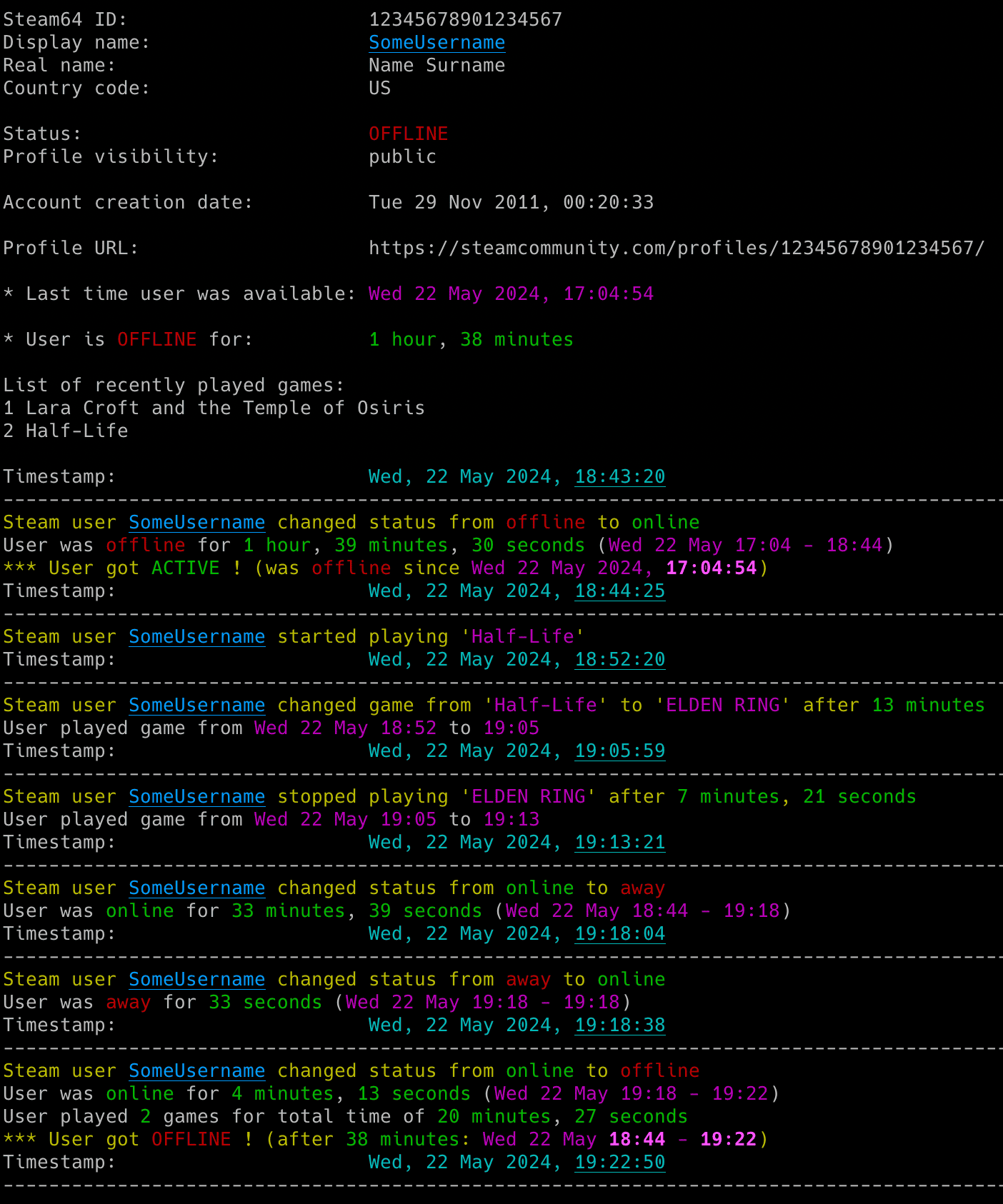
- Real-time tracking of Steam users' gaming activity (including detection when a user gets online/offline or plays games)
- Basic statistics for user activity (such as how long in different states, how long a game is played, overall time and the number of played games in the session etc.)
- Detailed user information display mode providing comprehensive Steam profile insights including profile details, Steam level and XP statistics, earned badges, ban status, friends count (with optional full friends list showing when each friendship started), top games by lifetime hours, recently played games with playtime statistics, hours played in the last 2 weeks, optional persona name history and optionally list of recent achievements
- Steam community URL resolution - automatically resolve Steam community URLs to Steam64 IDs (no need to know the numeric ID)
- Steam level and total XP change tracking
- Display (persona) name change tracking (detects and logs in real time when the monitored user renames their account)
- Friends list change tracking (friends count and when available - added/removed friends)
- Games library change tracking (game count, added/removed games)
- Email notifications for different events (when a player gets online/away/snooze/offline, starts/finishes/changes a game, Steam level and total XP changes, display name changes, friends list changes or errors occur)
- Webhook notifications through Discord, ntfy and compatible services, independently configurable from email alerts
- Saving all user activities and profile changes with timestamps to a CSV file
- Status persistence - automatically saves last status to JSON file to resume monitoring after restart
- Smart session continuity - handles short offline interruptions and preserves session statistics
- Flexible configuration - support for config files, dotenv files, environment variables and command-line arguments
- Configurable color themes - customizable terminal output colors and styles
- Possibility to control the running copy of the script via signals
- Functional, procedural Python (minimal OOP)
- Python 3.6 or higher
- Libraries: steam,
requests,python-dateutil,python-dotenv,Pillow
Tested on:
- macOS: Ventura, Sonoma, Sequoia, Tahoe
- Linux: Raspberry Pi OS (Bullseye, Bookworm, Trixie), Ubuntu 24/25, Rocky Linux 8.x/9.x, Kali Linux 2024/2025
- Windows: 10, 11
It should work on other versions of macOS, Linux, Unix and Windows as well.
pip install steam_monitorDownload the steam_monitor.py file to the desired location.
Install dependencies via pip:
pip install "steam[client]" requests python-dateutil python-dotenv PillowAlternatively, from the downloaded requirements.txt:
pip install -r requirements.txtTo upgrade to the latest version when installed from PyPI:
pip install steam_monitor -UIf you installed manually, download the newest steam_monitor.py file to replace your existing installation.
First save your Steam Web API key through the hidden prompt:
steam_monitor --set-steam-api-keyThen track the steam_user_id gaming activities:
steam_monitor <steam_user_id>Or if you installed manually:
python3 steam_monitor.py --set-steam-api-key
python3 steam_monitor.py <steam_user_id>
To get the list of all supported command-line arguments / flags:
steam_monitor --helpMost settings can be configured via command-line arguments.
If you want to have it stored persistently, generate a default config template and save it to a file named steam_monitor.conf:
# On macOS, Linux or Windows Command Prompt (cmd.exe)
steam_monitor --generate-config > steam_monitor.conf

# On Windows PowerShell (recommended to avoid encoding issues)
steam_monitor --generate-config steam_monitor.confIMPORTANT: On Windows PowerShell, using redirection (
>) can cause the file to be encoded in UTF-16, which will lead to "null bytes" errors when running the tool. It is highly recommended to provide the filename directly as an argument to--generate-configto ensure UTF-8 encoding.
Edit the steam_monitor.conf file and change any desired configuration options (detailed comments are provided for each).
You can get the Steam Web API key here: http://steamcommunity.com/dev/apikey
Provide the STEAM_API_KEY secret using one of the following methods:
- Save and validate it through a hidden prompt with
--set-steam-api-key(recommended) - Set it as an environment variable, for example
export STEAM_API_KEY=... - Add it to a .env file as
STEAM_API_KEY=...for persistent use - Pass it at runtime with
-u/--steam-api-key
The recommended command keeps the key out of shell history and process listings. It validates the key against the Steam Web API before atomically updating .env:
steam_monitor --set-steam-api-keyFor a custom private settings file:
steam_monitor --set-steam-api-key --env-file /path/.env-steam_monitorA key passed with -u / --steam-api-key may remain visible in shell history or process listings.
Fallback:
- Hard-code it in the code or config file
If you store the STEAM_API_KEY in a dotenv file you can update its value and send a SIGHUP signal to the process to reload the file with the new API key without restarting the tool. More info in Storing Secrets and Signal Controls (macOS/Linux/Unix).
In order to monitor Steam user activity, proper privacy settings need to be enabled on the monitored user account.
The user should go to Steam Privacy Settings.
The value in My Profile → Game details should be set to Friends Only or Public.
If you want to use email notifications functionality, configure SMTP settings in the steam_monitor.conf file.
Verify your SMTP settings by using --send-test-email flag (the tool will try to send a test email notification):
steam_monitor --send-test-emailSteam Monitor supports Discord webhooks and native ntfy topics. Webhook alerts are independent from email, so either channel can be enabled alone or both can receive the same event.
Save the private destination through a hidden prompt:
steam_monitor --set-webhook-urlThe command validates the URL and atomically stores only the private WEBHOOK_URL in .env without sending a message. Use a custom dotenv destination with --env-file PATH. Select the provider and event switches in steam_monitor.conf:
WEBHOOK_ENABLED = True
WEBHOOK_PROVIDER = "discord"  # or "ntfy"
WEBHOOK_ACTIVE_NOTIFICATION = True
WEBHOOK_INACTIVE_NOTIFICATION = True
WEBHOOK_STATUS_NOTIFICATION = False
WEBHOOK_GAME_CHANGE_NOTIFICATION = True
WEBHOOK_LEVEL_XP_NOTIFICATION = False
WEBHOOK_FRIENDS_NOTIFICATION = False
WEBHOOK_GAMES_NOTIFICATION = False
WEBHOOK_NAME_CHANGE_NOTIFICATION = False
WEBHOOK_ERROR_NOTIFICATION = True
For Discord, copy the URL from Edit Channel -> Integrations -> Webhooks. For ntfy, use a complete private topic URL such as https://ntfy.sh/your-private-topic. Protected ntfy topics can use NTFY_ACCESS_TOKEN from an environment variable or dotenv file.
Verify delivery without starting monitoring:
steam_monitor --send-test-webhookAdvanced integrations can set WEBHOOK_USERNAME, WEBHOOK_AVATAR_URL, WEBHOOK_HEADERS, WEBHOOK_TEMPLATE and WEBHOOK_TRANSFORMS. Template and header values can use title, description, version, image_url, fields, fields_str, color, timestamp, username and avatar_url placeholders. Discord mentions are always disabled.
NTFY_IMAGES enables bounded Steam avatar or game artwork attachments. If image preparation or upload fails, delivery falls back to text.
Long ntfy text messages are visibly truncated below ntfy's 4 KB boundary so they remain notifications instead of temporary attachments. Intentional image attachments through NTFY_IMAGES are unchanged.
It is recommended to store secrets like STEAM_API_KEY, SMTP_PASSWORD, WEBHOOK_URL or NTFY_ACCESS_TOKEN as either an environment variable or in a dotenv file.
Set environment variables using export on Linux/Unix/macOS/WSL systems:
export STEAM_API_KEY="your_steam_web_api_key"
export SMTP_PASSWORD="your_smtp_password"
export WEBHOOK_URL="https://discord.com/api/webhooks/..."
export NTFY_ACCESS_TOKEN="your_ntfy_access_token"
On Windows Command Prompt use set instead of export and on Windows PowerShell use $env.
Alternatively store them persistently in a dotenv file (recommended):
STEAM_API_KEY="your_steam_web_api_key"
SMTP_PASSWORD="your_smtp_password"
WEBHOOK_URL="https://discord.com/api/webhooks/..."
NTFY_ACCESS_TOKEN="your_ntfy_access_token"
By default the tool will auto-search for dotenv file named .env in current directory and then upward from it.
You can specify a custom file with DOTENV_FILE or --env-file flag:
steam_monitor <steam_user_id> --env-file /path/.env-steam_monitorYou can also disable .env auto-search with DOTENV_FILE = "none" or --env-file none:
steam_monitor <steam_user_id> --env-file noneAs a fallback, you can also store secrets in the configuration file or source code.
To display comprehensive Steam profile information for a user without starting monitoring, type the player's Steam64 ID (steam_user_id in the example below) and use the -i / --info flag:
steam_monitor <steam_user_id> -iOr with a Steam community URL:
steam_monitor -r "https://steamcommunity.com/id/steam_username/" -iIf you have not set STEAM_API_KEY secret, you can use -u flag:
steam_monitor <steam_user_id> -i -u "your_steam_web_api_key"
# or
steam_monitor -r "https://steamcommunity.com/id/steam_username/" -i -u "your_steam_web_api_key"
This mode displays detailed information including:
- Steam64 ID, display name, real name
- Country/region
- Current status and profile visibility
- Account creation date
- Profile URL
- Steam level, badges earned and XP statistics
- Ban status (VAC, Community, Economy)
- Friends count (with
--list-friendsit also shows the full list including when each friendship started) - Top games by lifetime hours
- Recently played games with playtime statistics
- Hours played in the last 2 weeks
Optionally, you can also display the persona (display) name history using the --name-history flag:
steam_monitor <steam_user_id> -i --name-historyThis lists the user's previous display names with the date each one was changed, as reported by Steam.
Optionally, you can also display recently earned achievements using the --achievements flag:
steam_monitor <steam_user_id> -i --achievements                    # show recent achievements (default: 10)
steam_monitor <steam_user_id> -i --achievements -n 20              # show up to 20 recent achievements
steam_monitor <steam_user_id> -i --achievements --achievements-all-games  # check all owned games instead of only recently played
Recent achievements show game name, achievement name, description (if available) and earn time.
How it works:
- By default, the tool checks achievements from the user's recently played games (up to 15 games).
- If the recently played games list is empty or hidden, it automatically falls back to checking all owned games.
- Use
--achievements-all-gamesto force checking all owned games instead of only recently played games. This is useful for users who haven't played recently, as their recently played list may be limited and older games with achievements might be missed. - Achievements are sorted by unlock time (most recent first) and limited to the number specified with
-n(default: 10).
The visibility of achievements depends on the user's Steam privacy settings for game details. If game details are set to "Private", achievements may not be accessible.
The tool displays this information and then exits (does not start monitoring).
To monitor specific user activity, just type the player's Steam64 ID (steam_user_id in the example below):
steam_monitor <steam_user_id>If you have not set STEAM_API_KEY secret, you can use -u flag:
steam_monitor <steam_user_id> -u "your_steam_web_api_key"If you do not know the user's Steam64 ID, but you know the Steam profile/community URL (which can be customized by the user), you can also run the tool with -r flag which will automatically resolve it to Steam64 ID:
steam_monitor -r "https://steamcommunity.com/id/steam_username/"When monitoring starts, the tool displays user information including Steam64 ID, display name, real name (if available), country/region, current status, profile visibility, account creation date and profile URL.
By default, the tool looks for a configuration file named steam_monitor.conf in:
- current directory
- home directory (
~) - script directory
If you generated a configuration file as described in Configuration, but saved it under a different name or in a different directory, you can specify its location using the --config-file flag:
steam_monitor <steam_user_id> --config-file /path/steam_monitor_new.confThe tool runs until interrupted (Ctrl+C). Use tmux or screen for persistence.
You can monitor multiple Steam players by running multiple instances of the script.
The tool automatically saves its output to steam_monitor_<user_steam_id/file_suffix>.log file. The log file name can be changed via ST_LOGFILE configuration option and its suffix via FILE_SUFFIX / -y flag. Logging can be disabled completely via DISABLE_LOGGING / -d flag.
Set ASCII_LOG_SEPARATORS to "Auto" (default) to use ASCII separator-only lines on Windows, "On" to use them on every operating system or "Off" to preserve Unicode separators in logs everywhere. Terminal separators stay Unicode. Log files and all other logged text remain UTF-8.
The tool also saves the timestamp and last status (after every change) to the steam_<user_display_name>_last_status.json file, so the last status is available after the restart of the tool. When games library tracking is enabled, a snapshot of the library (game count and app IDs) is stored in steam_<user_display_name>_games.json and only changes are reported.
To track when the user's Steam level and total XP changes:
- set
STEAM_LEVEL_XP_CHECKtoTrue - or use the
--check-level-xpflag
To track changes in the user's friends list (count and when available - added/removed friends):
- set
FRIENDS_CHECKtoTrue - or use the
--check-friendsflag
To track changes in the user's games library (game count and added/removed games):
- set
GAMES_LIBRARY_CHECKtoTrue - or use the
--check-gamesflag
The user's display (persona) name is tracked automatically with no extra configuration. Whenever it changes, the tool logs the old and new name and (when a profile CSV is configured) records a name_change row. To also receive an email on such changes use --notify-name-change (see Email Notifications).
To enable email notifications when a user gets online or offline:
- set
ACTIVE_INACTIVE_NOTIFICATIONtoTrue - or use the
-aflag
steam_monitor <steam_user_id> -aTo be informed when a user starts, stops or changes the played game:
- set
GAME_CHANGE_NOTIFICATIONtoTrue - or use the
-gflag
steam_monitor <steam_user_id> -gTo get email notifications about any changes in user status (online/away/snooze/offline):
- set
STATUS_NOTIFICATIONtoTrue - or use the
-sflag
steam_monitor <steam_user_id> -sTo get email notifications when the user's display (persona) name changes:
- set
NAME_CHANGE_NOTIFICATIONtoTrue - or use the
--notify-name-changeflag
Display name changes are always detected and logged to the console, log file and profile CSV. This flag only controls whether an email is also sent.
steam_monitor <steam_user_id> --notify-name-changeTo get email notifications when the user's Steam level and total XP changes:
- set
STEAM_LEVEL_XP_NOTIFICATIONtoTrue - or use the
--notify-level-xpflag
It requires Steam level and total XP tracking (STEAM_LEVEL_XP_CHECK / --check-level-xp) to be enabled.
steam_monitor <steam_user_id> --check-level-xp --notify-level-xpTo get email notifications when the user's friends list changes:
- set
FRIENDS_NOTIFICATIONtoTrue - or use the
--notify-friendsflag
It requires friends tracking (FRIENDS_CHECK / --check-friends) to be enabled.
steam_monitor <steam_user_id> --check-friends --notify-friendsTo get email notifications when the user's games library changes:
- set
GAMES_LIBRARY_NOTIFICATIONtoTrue - or use the
--notify-gamesflag
It requires games library tracking (GAMES_LIBRARY_CHECK / --check-games) to be enabled.
steam_monitor <steam_user_id> --check-games --notify-gamesTo disable sending an email on errors (enabled by default):
- set
ERROR_NOTIFICATIONtoFalse - or use the
-eflag
steam_monitor <steam_user_id> -eMake sure you defined your SMTP settings earlier (see SMTP settings).
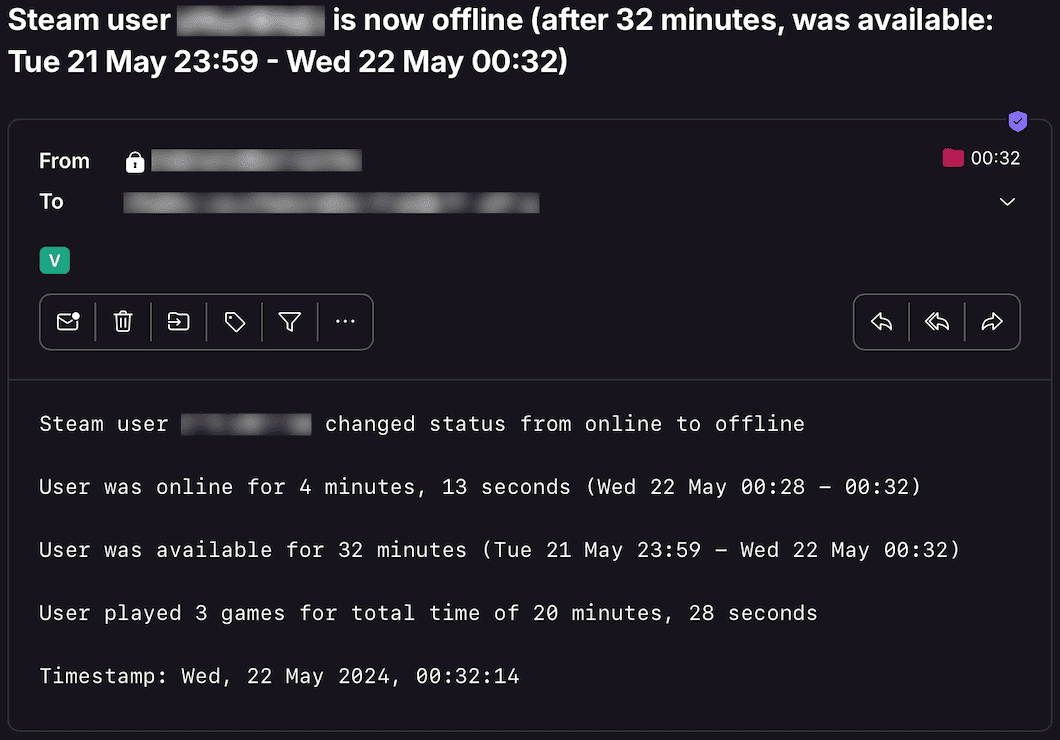
Example email:
Webhook event switches mirror the email choices while remaining independent:
| Event | Configuration | One-run flag |
|---|---|---|
| User becomes active | WEBHOOK_ACTIVE_NOTIFICATION |
--webhook-active |
| User goes offline | WEBHOOK_INACTIVE_NOTIFICATION |
--webhook-inactive |
| Any status change | WEBHOOK_STATUS_NOTIFICATION |
--webhook-status |
| Game starts, changes or stops | WEBHOOK_GAME_CHANGE_NOTIFICATION |
--webhook-game-changes |
| Steam level or XP changes | WEBHOOK_LEVEL_XP_NOTIFICATION |
--webhook-level-xp |
| Friends list changes | WEBHOOK_FRIENDS_NOTIFICATION |
--webhook-friends |
| Games library changes | WEBHOOK_GAMES_NOTIFICATION |
--webhook-games |
| Display name changes | WEBHOOK_NAME_CHANGE_NOTIFICATION |
--webhook-name-change |
| Monitoring errors | WEBHOOK_ERROR_NOTIFICATION |
--webhook-errors or --no-webhook-error-notify |
Use --webhook or --no-webhook to override the master switch for one run. Event flags enable the master switch automatically. Level and XP, friends and games alerts require their corresponding tracking options.
For example:
steam_monitor <steam_user_id> --webhook-active --webhook-inactive --webhook-game-changes
steam_monitor <steam_user_id> --check-friends --webhook-friends
Known Discord and ntfy.sh URLs automatically select the matching request format even if the configured provider is stale. Set WEBHOOK_PROVIDER in steam_monitor.conf or use --webhook-provider {discord,ntfy} for self-hosted ntfy or compatible endpoints. For automation or one-time tests, --webhook-url URL overrides the destination without changing .env:
steam_monitor --webhook-provider ntfy --webhook-url "https://ntfy.sh/your-private-topic" --send-test-webhookA URL passed on the command line may remain visible in shell history or process listings. Prefer --set-webhook-url for persistent private destinations.
If you want to save all reported activities of the Steam user to a CSV file, set CSV_FILE or use -b flag:
steam_monitor <steam_user_id> -b steam_user_id.csvThe file will be automatically created if it does not exist.
If you want to save profile-related changes (Steam level changes, total XP changes, display name changes, friends count changes, games library changes and individual added/removed friends) to a separate CSV file, set PROFILE_CSV_FILE or use the --profile-csv-file flag:
steam_monitor <steam_user_id> --profile-csv-file steam_user_id_profile.csvEach row contains a timestamp, event type and associated values (for example: old/new Steam level or XP, friends count delta or one friend per row for added/removed friends, when available).
If you want to customize polling intervals, use -k and -c flags (or corresponding configuration options):
steam_monitor <steam_user_id> -k 30 -c 120STEAM_ACTIVE_CHECK_INTERVAL,-k: check interval when the user is online, away or snooze (seconds)STEAM_CHECK_INTERVAL,-c: check interval when the user is offline (seconds)
The tool has several signal handlers implemented which allow to change behavior of the tool without a need to restart it with new configuration options / flags.
List of supported signals:
| Signal | Description |
|---|---|
| USR1 | Toggle email notifications when user gets online or offline (-a) |
| USR2 | Toggle email notifications when user starts/stops/changes the game (-g) |
| CONT | Toggle email notifications for all user status changes (online/away/snooze/offline) (-s) |
| URG | Toggle email notifications for Steam level/XP changes (--notify-level-xp) |
| PIPE | Toggle email notifications for friends list changes (--notify-friends) |
| VTALRM | Toggle email notifications for display name changes (--notify-name-change) |
| TRAP | Increase the check timer for player activity when user is online/away/snooze (by 30 seconds) |
| ABRT | Decrease check timer for player activity when user is online/away/snooze (by 30 seconds) |
| HUP | Reload secrets from .env file |
Send signals with kill or pkill, e.g.:
pkill -USR1 -f "steam_monitor <steam_user_id>"As Windows supports limited number of signals, this functionality is available only on Linux/Unix/macOS.
The tool has native color output support for terminal since v1.5 (see COLORED_OUTPUT and COLOR_THEME config options), but you can also use GRC to color logs.
Add to your GRC config (~/.grc/grc.conf):
# monitoring log file
.*_monitor_.*\.log
conf.monitor_logs
Now copy the conf.monitor_logs to your ~/.grc/ and log files should be nicely colored when using grc tool.
Example:
grc tail -F -n 100 steam_monitor_<user_steam_id/file_suffix>.logSee RELEASE_NOTES.md for details.
Licensed under GPLv3. See LICENSE.